
Appearance
Newsletter popup
Encourage customers to subscribe to your newsletter without disrupting their browsing experience.
The Newsletter Popup section is designed to help you collect customer email addresses in a controlled and non-intrusive way. With its detailed configuration options, you can fine-tune when and how the pop-up appears, ensuring it supports conversions without breaking page flow or frustrating users.
When configured correctly, this section allows you to promote subscriptions while maintaining a smooth and respectful customer experience across all devices.
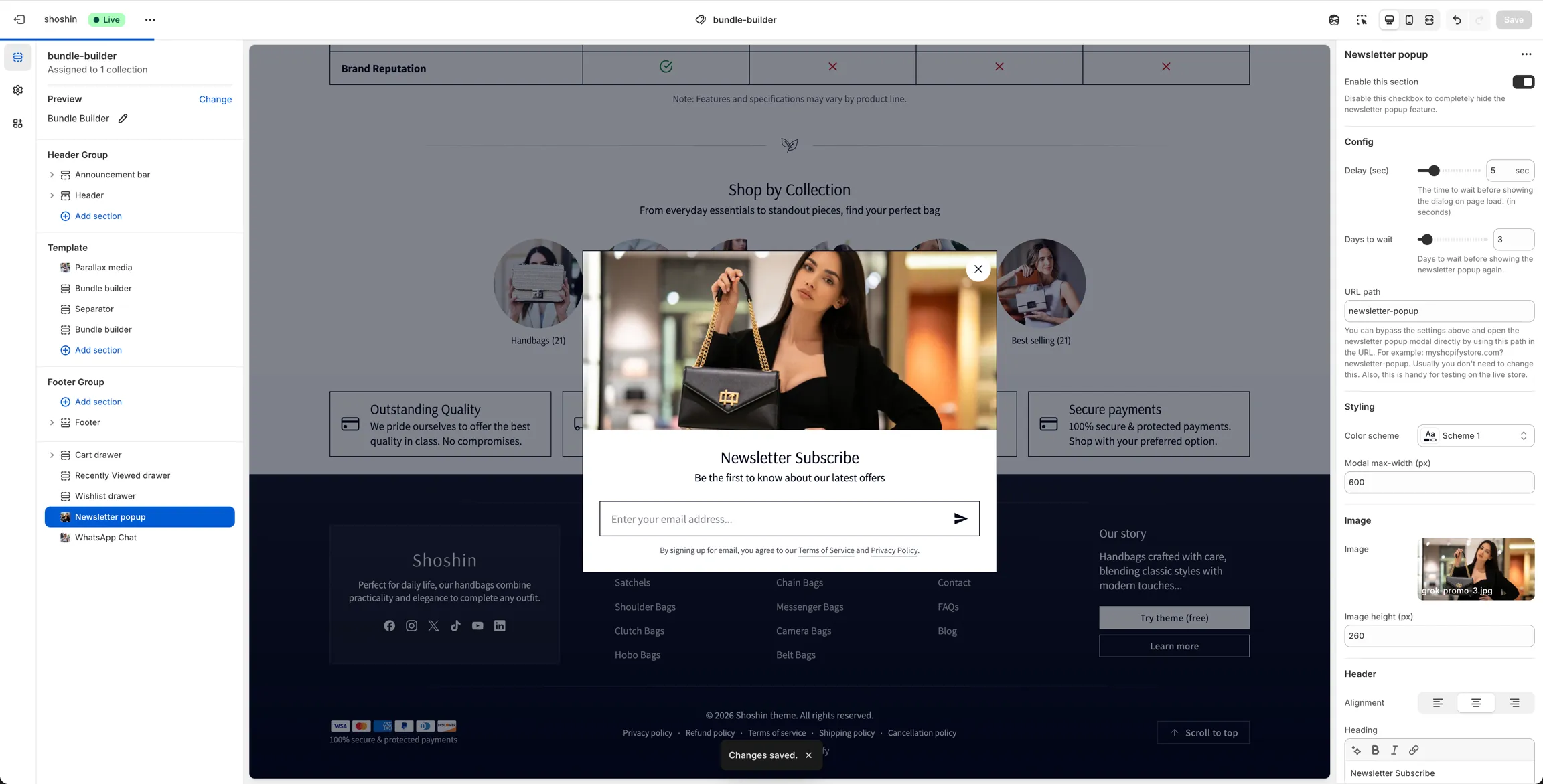
Configuration
The Newsletter Popup section includes the following settings:
General
- Enable this section
Disable this option to completely hide the newsletter pop-up across the store.
Behavior
Delay (sec)
Time to wait before displaying the pop-up after the page loads (in seconds).Days to wait
Number of days to wait before showing the newsletter pop-up again to the same visitor.URL path
Allows you to bypass the delay and cooldown rules and open the pop-up directly using a URL parameter.
Example:myshopifystore.com?newsletter-popup
This is primarily useful for testing on a live store and usually does not need to be changed.
Styling
Color scheme
Select the color scheme applied to the pop-up. Typically, your main scheme (for example,scheme-1) works best.Modal max-width (px)
Adjust the maximum width of the pop-up modal. If the screen width is smaller than the specified value (such as on mobile devices), the modal will automatically adapt.
Image
Image
Select an image displayed at the top of the modal. This image animates when the pop-up opens.Image height (px)
Set the preferred image height in pixels. Keeping this value smaller is recommended for mobile devices to avoid excessive vertical space usage.
Header
Alignment
Control the text alignment of the header content.Heading
Enter the main title for the newsletter pop-up.Heading size
Choose the heading size. Available options are H1 through H6.Description
Supporting text displayed below the heading.
Example: "Be the first to know about our latest offers."Description font size
Adjust the description text size. Available options are sm, md, lg, and xl.
Newsletter Form
Button style
Select the style and color treatment for the submit button.
Available options: Text, Accent, Text-inverted, Accent-inverted.Notice text
Optional text displayed below the form. Commonly used for legal or informational content, such as: "By signing up, you agree to our Terms of Service."Newsletter tags
Comma-separated list of tags applied to customers when they subscribe. Useful for segmentation and email marketing automation.